
Configure an AI coding provider
AI coding provider setup happens on the worker side. That keeps provider readiness, credentials, and execution close to the environment where code is checked out and validated.
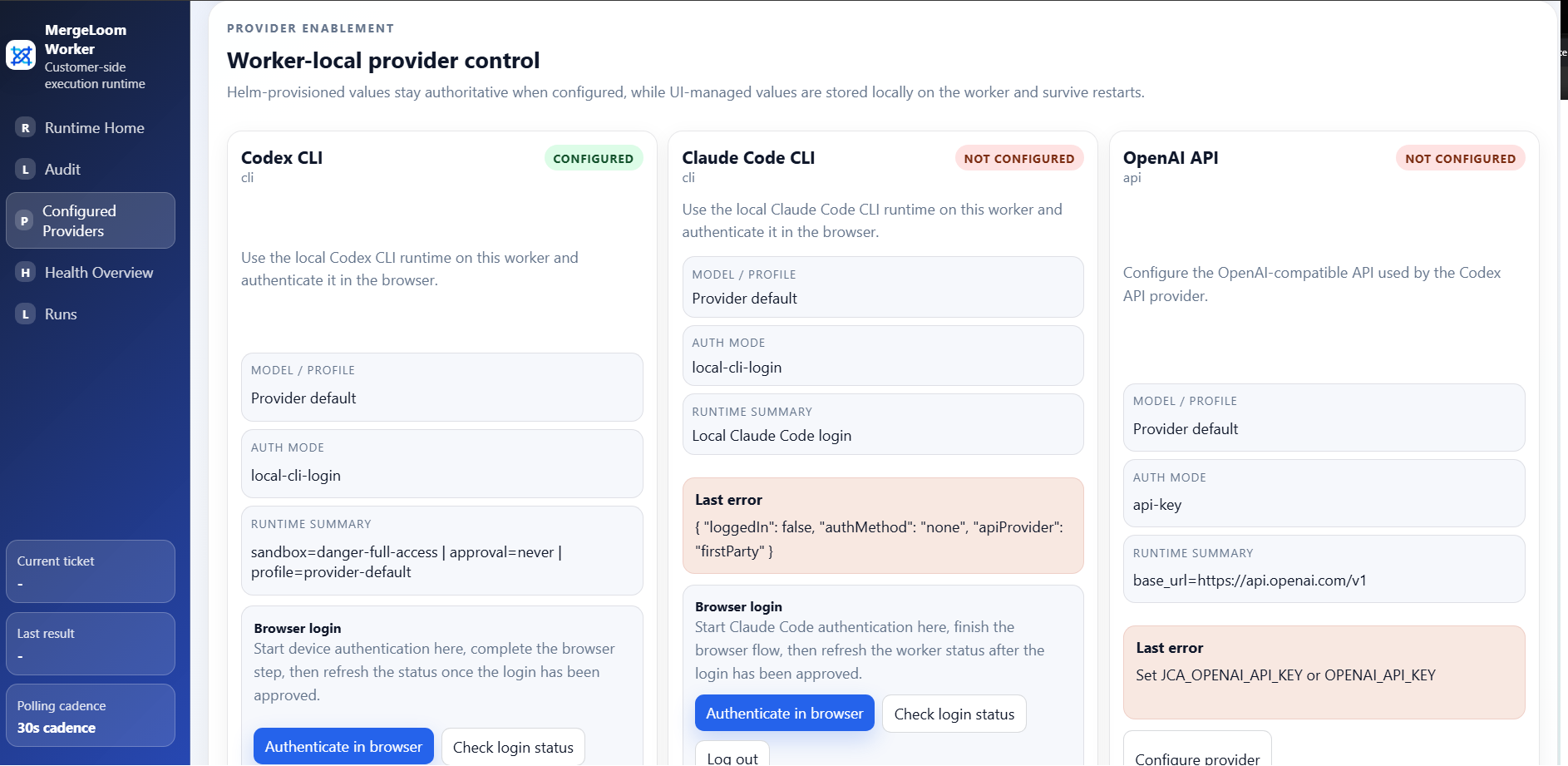
For the first real test, use the worker UI provider page.
This is in the local worker UI
Install the worker first, then open http://127.0.0.1:8010/.
If the worker runs on a VPS, create an SSH tunnel to port
8010 before opening the worker UI.
Provider ownership modes
Section titled “Provider ownership modes”MergeLoom supports two provider configuration modes.
| Mode | Use it when |
|---|---|
ui | You want workspace operators to configure providers through the worker UI. This is the easiest first-run path. |
provisioned | You want provider settings supplied by environment, Kubernetes Secret values, Helm values, or another platform-controlled process. |
Docker Compose defaults to UI-managed provider config:
JCA_PROVIDER_CONFIG_MODE=uiThe Helm chart runs the gateway in UI-managed provider mode by default. Executors read provider config from the gateway:
gateway: JCA_PROVIDER_CONFIG_MODE: ui
executors: JCA_PROVIDER_CONFIG_MODE: gatewayFor production Kubernetes installs, put provider API keys in a Kubernetes Secret
and pass the Secret name through secret.existingSecretName.
Codex CLI
Section titled “Codex CLI”Codex CLI is the easiest first real test path in the current product.
Use:
- backend type:
cli - provider:
codex-cli - auth mode: local CLI login
Recommended path:
- Start the worker.
- Open the local worker UI at
http://127.0.0.1:8010/. - Open the provider setup page.
- Choose the
codex-cliprovider card. - Click
Authenticate in browser. - Complete the device-auth flow.
- Click
Check login status.
Shell fallback:
docker compose exec worker-gateway codex login --device-auth
Claude Code CLI
Section titled “Claude Code CLI”Claude Code CLI follows the same worker-local pattern.
Recommended path:
- Start the worker.
- Open the worker provider page.
- Choose the
claude-code-cliprovider card. - Click
Authenticate in browser. - Complete the browser sign-in flow.
- Click
Check login status.
Shell fallback:
docker compose exec worker-gateway claude auth loginOpenAI-compatible endpoint
Section titled “OpenAI-compatible endpoint”Use this path for private or self-hosted OpenAI-style chat completions endpoints.
Required values:
| Field | Meaning |
|---|---|
| Base URL | Endpoint root that exposes /chat/completions, for example http://local-model:8000/v1. |
| Default model | Model or deployment name sent to the endpoint. |
| Auth mode | none for trusted local endpoints, bearer for endpoints requiring a bearer token. |
| API key | Required when auth mode is bearer. |
The self-test sends a forced function call. It must pass before you use the endpoint for real tickets.
MergeLoom requires real tool-calling support because the worker needs to inspect files, edit files, run allowed commands, and report final results.
Vertex AI
Section titled “Vertex AI”Use Vertex AI when the worker should call Gemini or another Vertex publisher model from your Google Cloud environment.
Recommended auth modes:
| Auth mode | Best for | Notes |
|---|---|---|
| Service account JSON | Simple first setup | Store it in the worker UI only for tests. In production, use a Kubernetes Secret or Docker secret. |
| ADC / Workload Identity | GKE or Google-hosted workers | Preferred for Kubernetes because the pod can use workload identity without a long-lived JSON key. |
| Bearer access token | Temporary testing | Tokens expire, so this is not a production path. |
For standard Gemini/Vertex models, choose Publisher model path and enter:
- project ID
- location, such as
global - publisher, usually
google - model, such as
gemini-2.5-pro
Use Raw endpoint URL only for custom or advanced Vertex endpoints.
For GKE Workload Identity Federation, configure the pod identity outside
MergeLoom, then set the worker provider auth method to ADC / Workload Identity.
No service account JSON is needed. See Google Cloud docs for
Vertex AI authentication
and
GKE Workload Identity Federation.
Google also documents that service account keys need careful handling; see best practices for managing service account keys.
AWS Bedrock
Section titled “AWS Bedrock”Recommended auth modes:
| Auth mode | Best for | Notes |
|---|---|---|
| AWS default credential chain / IAM role | Production, EKS IRSA, EC2/ECS roles, mounted AWS config | Preferred. The worker asks the AWS SDK credential chain for temporary credentials. |
| Static access keys | Quick tests or locked-down temporary keys | Store in a Secret, not plain Helm values, for production. |
| AWS profile | Mounted ~/.aws/config or ~/.aws/credentials | Useful for platform teams that already manage profile files. |
Required values are region and model ID. For production Kubernetes installs, use an IAM role through EKS IRSA or another workload identity mechanism rather than long-lived access keys.
AWS references:
Azure Foundry
Section titled “Azure Foundry”Recommended auth modes:
| Auth mode | Best for | Notes |
|---|---|---|
| API key | Simple first setup | Store in a Secret for production. |
| Entra service principal | Non-AKS automation where a client secret is acceptable | Requires tenant ID, client ID, and client secret. |
| Managed identity | Azure-hosted workers | Use a system-assigned or user-assigned managed identity. |
| Azure workload identity | AKS production installs | Preferred on AKS because Kubernetes can project a federated token to the pod. |
| Bearer access token | Temporary testing | Tokens expire, so this is not a production path. |
For Azure workload identity, configure AKS and the federated identity credential outside MergeLoom, then set:
JCA_AZURE_FOUNDRY_AUTH_METHOD=workload_identityAZURE_TENANT_IDAZURE_CLIENT_IDAZURE_FEDERATED_TOKEN_FILE, if your platform does not inject it
The token scope used by the worker is
https://cognitiveservices.azure.com/.default, matching Microsoft Foundry
guidance. See Microsoft docs for
Foundry authentication and authorization
and
AKS Workload Identity.
Kubernetes provider secrets
Section titled “Kubernetes provider secrets”The Helm chart can consume an existing Kubernetes Secret with envFrom.
Example:
kubectl create namespace mergeloom --dry-run=client -o yaml | kubectl apply -f -
kubectl create secret generic mergeloom-worker-env \ --namespace mergeloom \ --from-literal=JCA_WORKER_ENROLLMENT_TOKEN="worker-enrollment-token" \ --from-literal=JCA_OPENAI_API_KEY="openai-api-key" \ --from-literal=JCA_ANTHROPIC_API_KEY="anthropic-api-key"
helm upgrade --install mergeloom-worker oci://registry-1.docker.io/mergeloom/mergeloom-worker \ --version 1.0.1 \ --namespace mergeloom \ --create-namespace \ --set worker.controlPlaneUrl="https://controller.mergeloom.ai" \ --set worker.tenantSlug="customer-slug" \ --set secret.existingSecretName="mergeloom-worker-env"Supported sensitive Secret keys include:
JCA_WORKER_ENROLLMENT_TOKENJCA_WORKER_CLUSTER_TOKENJCA_OPENAI_API_KEYJCA_ANTHROPIC_API_KEYJCA_VERTEX_SERVICE_ACCOUNT_JSONJCA_VERTEX_ACCESS_TOKENAWS_ACCESS_KEY_IDAWS_SECRET_ACCESS_KEYAWS_SESSION_TOKENJCA_AZURE_FOUNDRY_API_KEYAZURE_CLIENT_SECRETJCA_AZURE_FOUNDRY_BEARER_TOKEN
Non-sensitive model defaults can still be supplied through Helm values such as
providerEnv.openaiModel, providerEnv.anthropicModel,
providerEnv.vertexModel, providerEnv.bedrockModelId, and
providerEnv.azureFoundryModel.
For Kubernetes installs, the recommended production pattern is:
- use
secret.existingSecretNamefor enrollment tokens and static provider secrets - use workload identity or IAM roles instead of static cloud keys where available
- use
serviceAccount.annotations,podLabels, andpodAnnotationsin the Helm chart to attach the pod identity your cloud platform expects
Provider selection precedence
Section titled “Provider selection precedence”When a job runs, provider and model selection is resolved in this order:
- ticket or issue directive
provider=... - ticket or issue directive
model=... - repository workflow provider/model defaults
- tenant default provider and optional tenant-default model from the worker setup page
- worker-stored provider default model/profile
What to verify
Section titled “What to verify”Before running a real job:
- provider login or API key is valid
- provider readiness check passes
- selected model supports the required tool-calling behavior
- worker can reach the provider from inside its container or pod
- your allowed commands and validation commands match the repository