
Run Your First Ticket-to-Code Job
Run your first ticket-to-code job only after:
- Cloud Hosted is selected, or the Self Hosted worker is enrolled
- the AI provider path is ready
- integrations are connected
- a repository is enabled for work
- intake labels and states are configured
Use the Right Run Surfaces
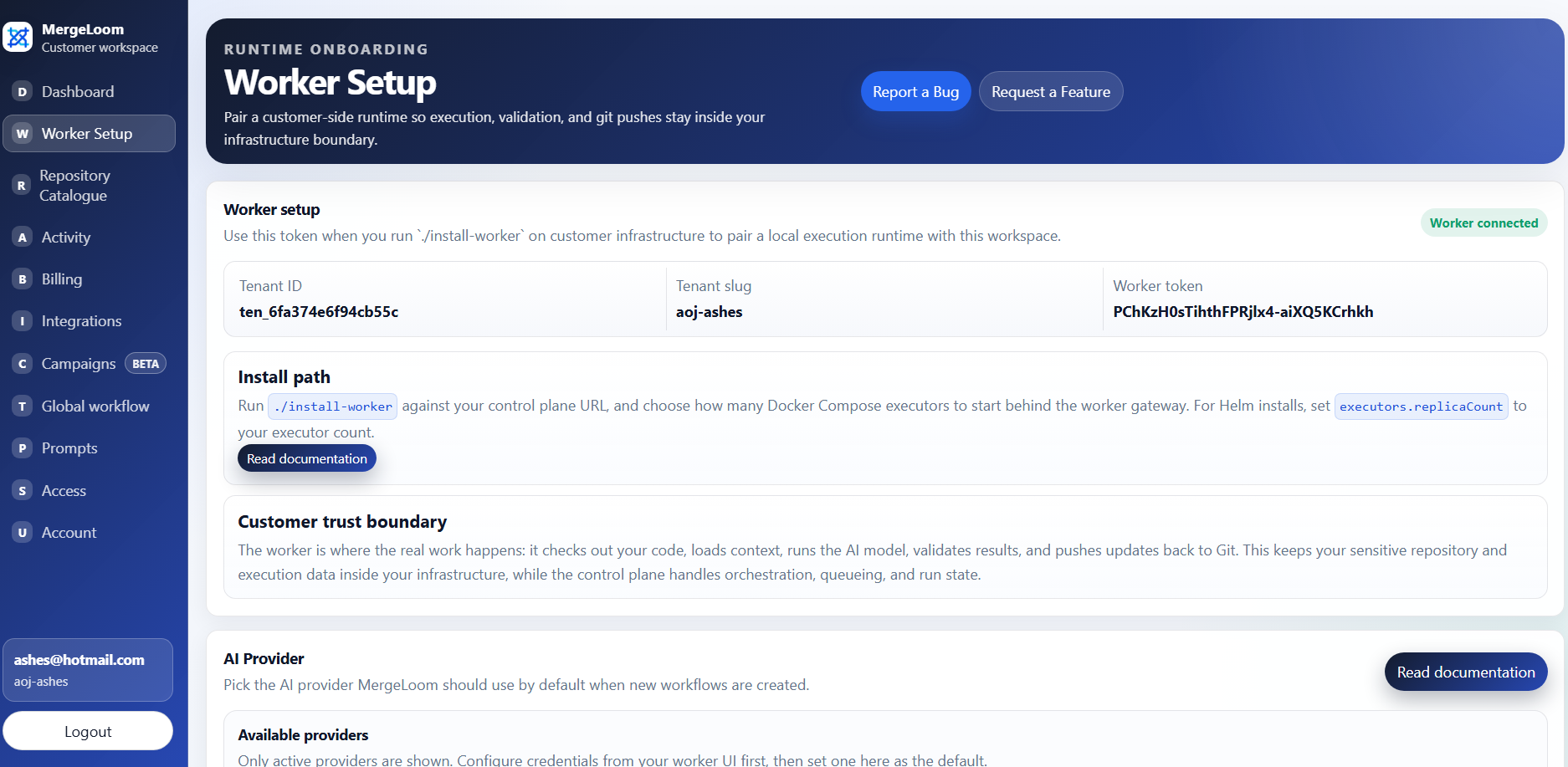
Use https://controller.mergeloom.ai for job creation, intake
status, Cloud Hosted audit, controller audit, and PR/MR coordination. For Self Hosted, use the local worker UI at
http://127.0.0.1:8010/ for worker/provider readiness and
local execution detail, Ticket Audit, and Code Audit.
Link the Ticket to a Repository
Section titled “Link the Ticket to a Repository”Before you run the first job, make sure MergeLoom knows which repository the ticket should change.
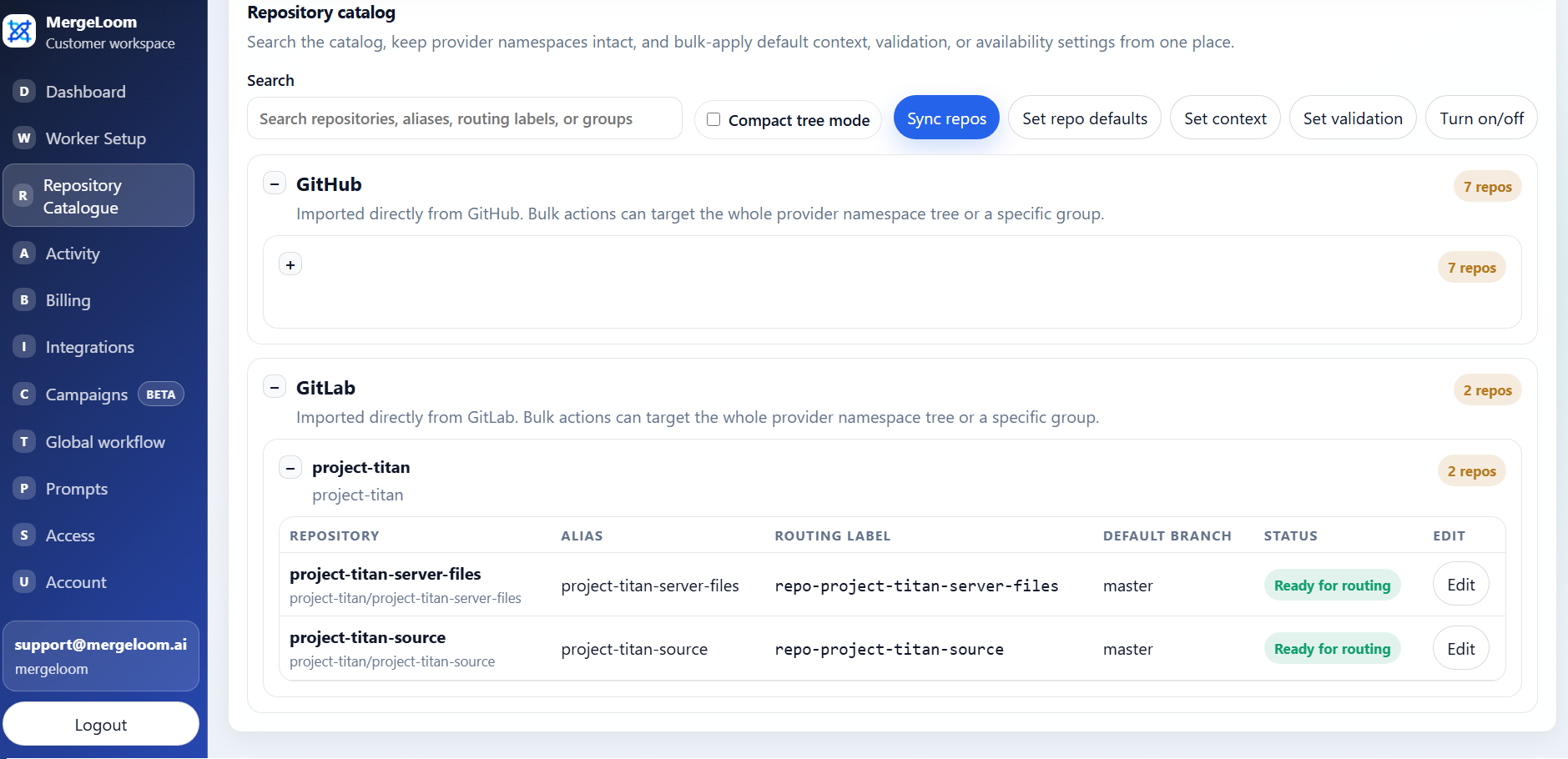
Open Repository catalog in the customer controller at
https://controller.mergeloom.ai. Each enabled repository has an alias. That
alias becomes the routing label you add to the ticket.
Example:
| Repository alias | Ticket label |
|---|---|
server | repo-server |
web | repo-web |
api | repo-api |
If your workspace has more than one enabled work repositories, add the matching
repo-<alias> label to the ticket, issue, work item, or board item. For
example, if the repository alias is web, add:
repo-webIf the alias is wrong or the label is missing, MergeLoom cannot safely decide where to make the change. It will leave the ticket in place, record the routing problem in the controller activity log, and wait for you to fix the label or the repository catalog entry.
repo-web.
Path A: Real Ticket or Issue
Section titled “Path A: Real Ticket or Issue”Use a real ticket when you want to test the normal workflow.
-
Create a small ticket or issue.
-
Add the managed intake label:
mergeloom -
Add a repository routing label if needed:
repo-server -
Confirm the routing label matches the repository alias in Repository catalog.
-
Put the ticket in the ready state.
-
In Global workflow settings, turn Scheduled intake on.
-
Wait for scheduler intake.
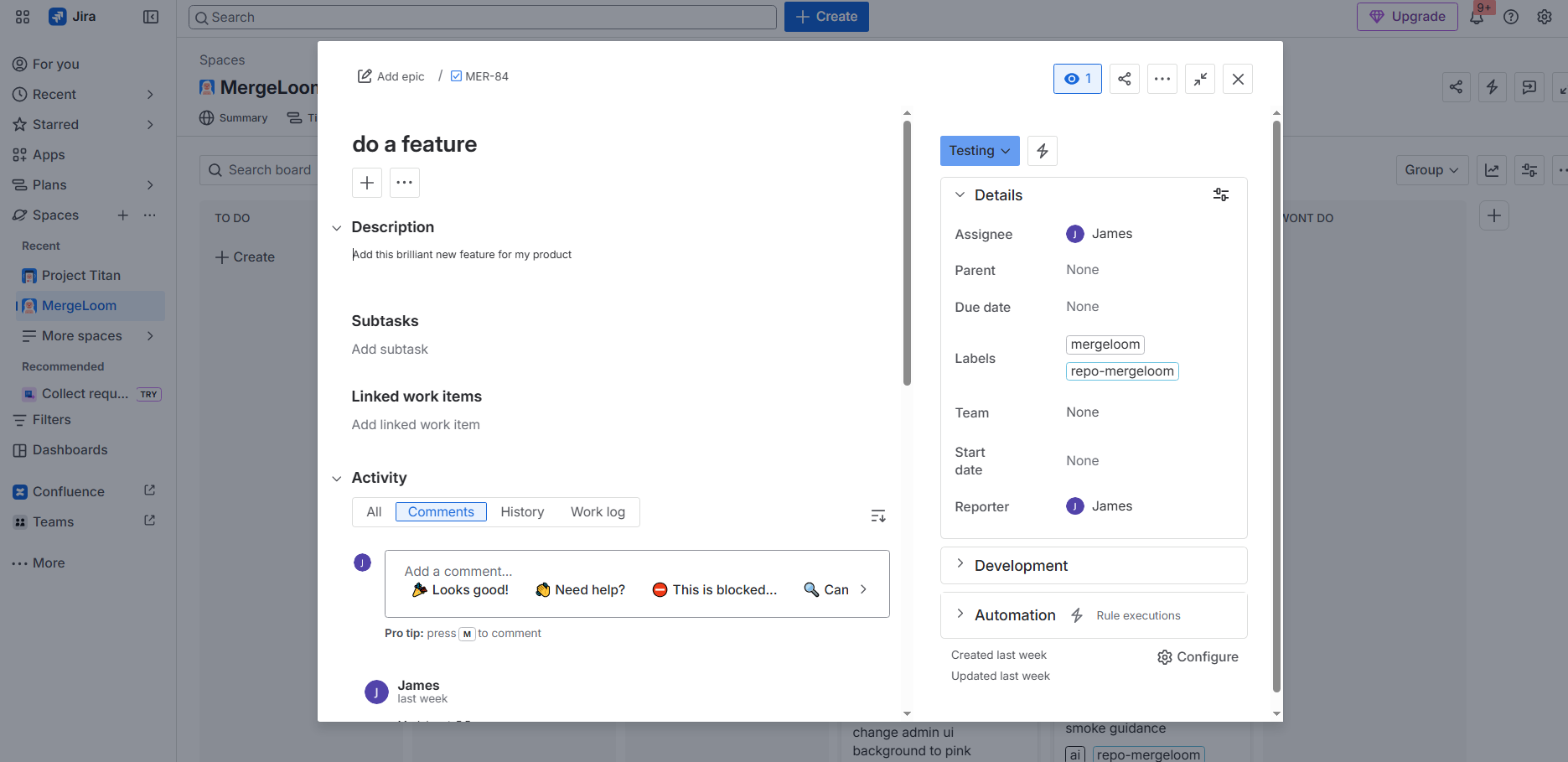
Good first ticket:
Update README.md with a short local health-check section.Keep the change under 30 lines.Run the repository validation command before opening the PR.Path B: Manual Smoke Job
Section titled “Path B: Manual Smoke Job”Use a manual smoke job only to validate setup before enabling scheduled intake. It is not a retry or recovery action.
In the MergeLoom controller at https://controller.mergeloom.ai, use Create Manual Job.
The manual form is best for simple repository-workflow tests. Required fields include:
- repository workflow
ticket_key- title
Use a real ticket for detailed instructions, comments, routing directives, or multi-repository work.
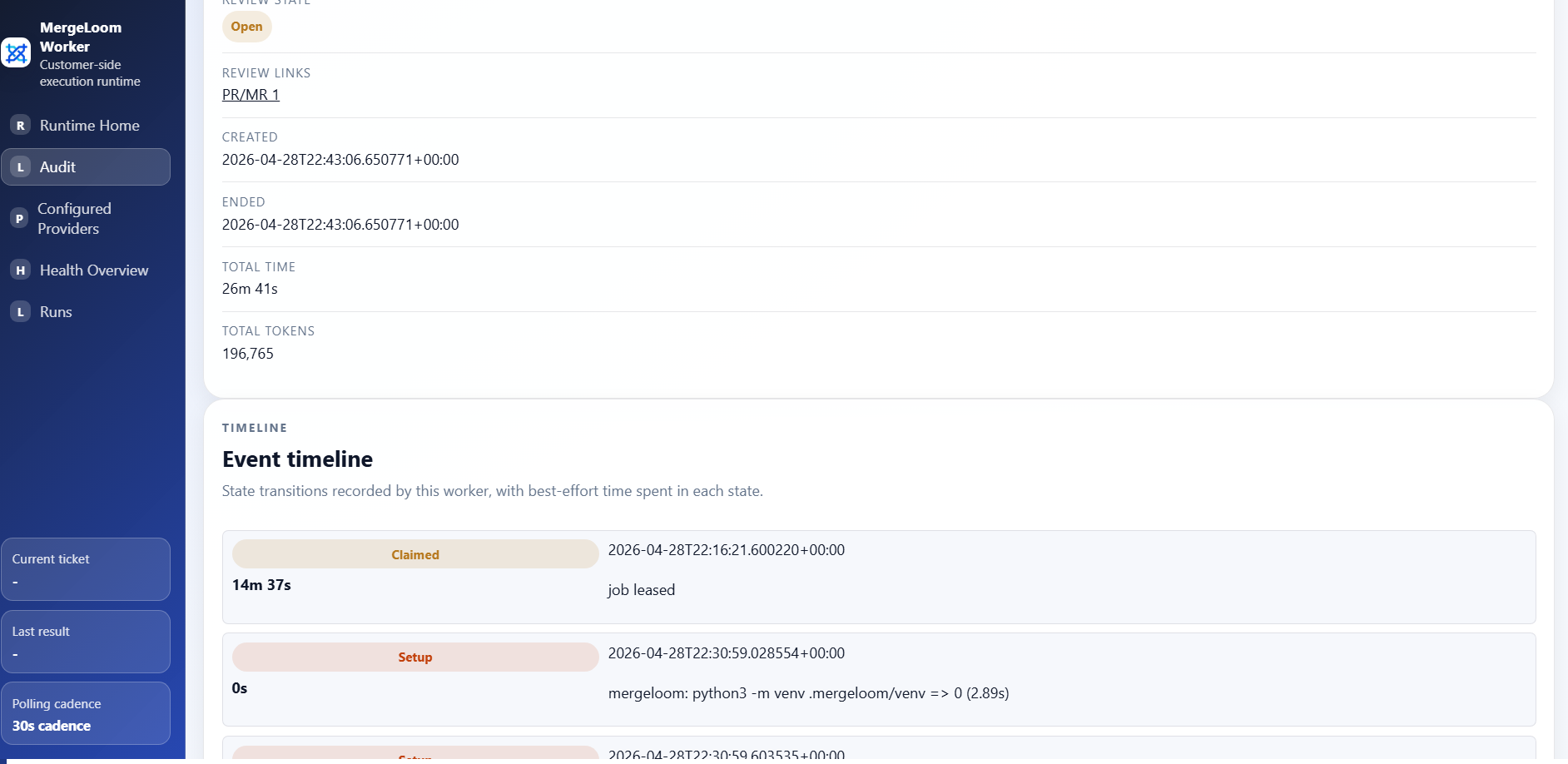
Watch the Run
Section titled “Watch the Run”Use these surfaces:
- MergeLoom customer controller
- worker UI for Self Hosted
Useful Docker logs for Self Hosted:
docker compose logs -fdocker compose logs -f worker-gatewaydocker compose logs -f worker-executor-1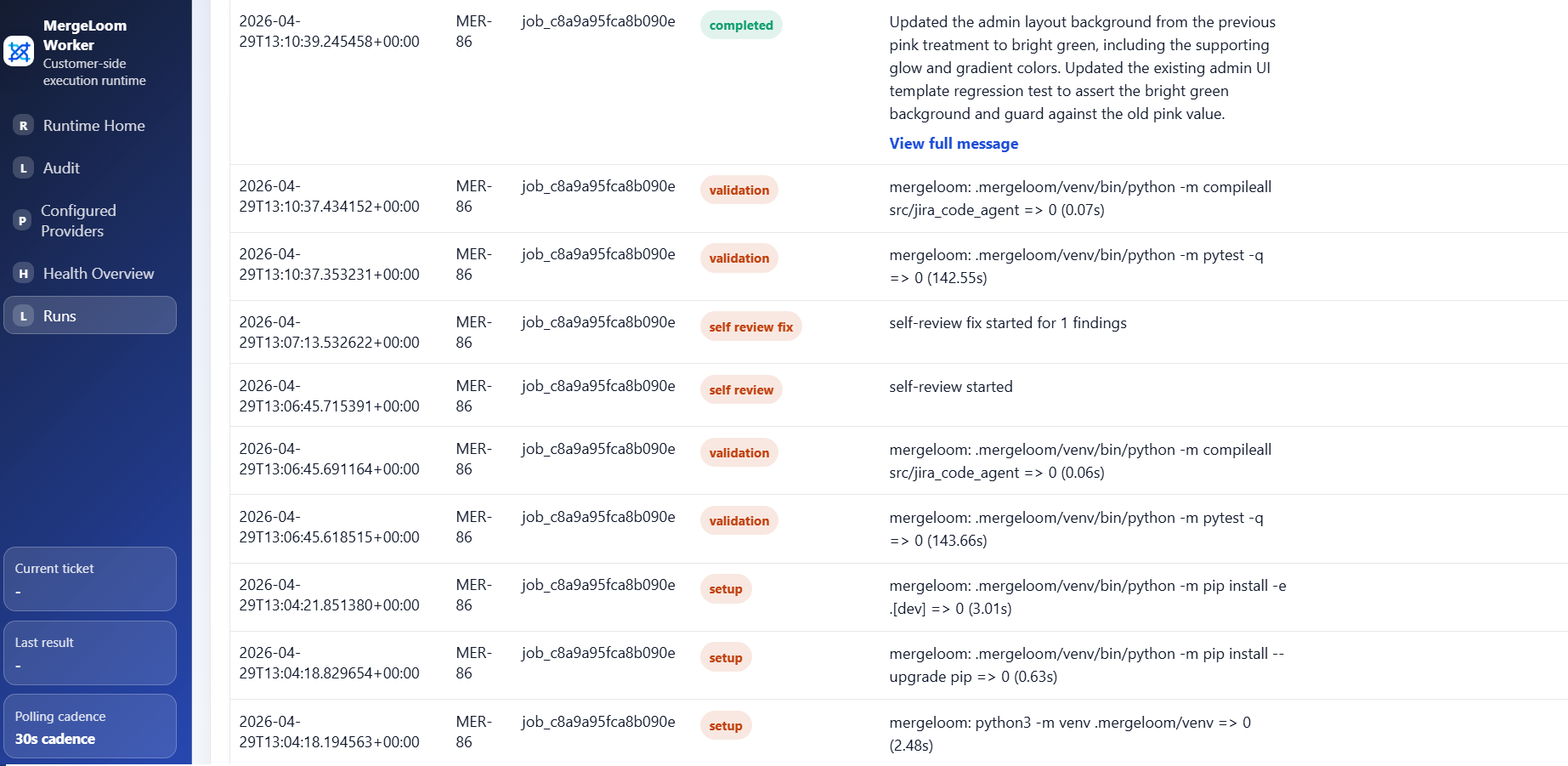
Expected Successful End State
Section titled “Expected Successful End State”For a configured issue-to-review path:
- The controller detects an eligible ticket or issue.
- The controller creates a job record.
- The selected execution path starts the job.
- MergeLoom prepares the repository workspace.
- Clarity Agent checks whether the ticket is ready enough to run.
- Context Engine and Investigation Agent prepare the implementation brief.
- Implementation Agent writes the change.
- Validation commands run.
- Repair Agent and Review Agent run when configured.
- Diff Guard checks the size and shape of the change.
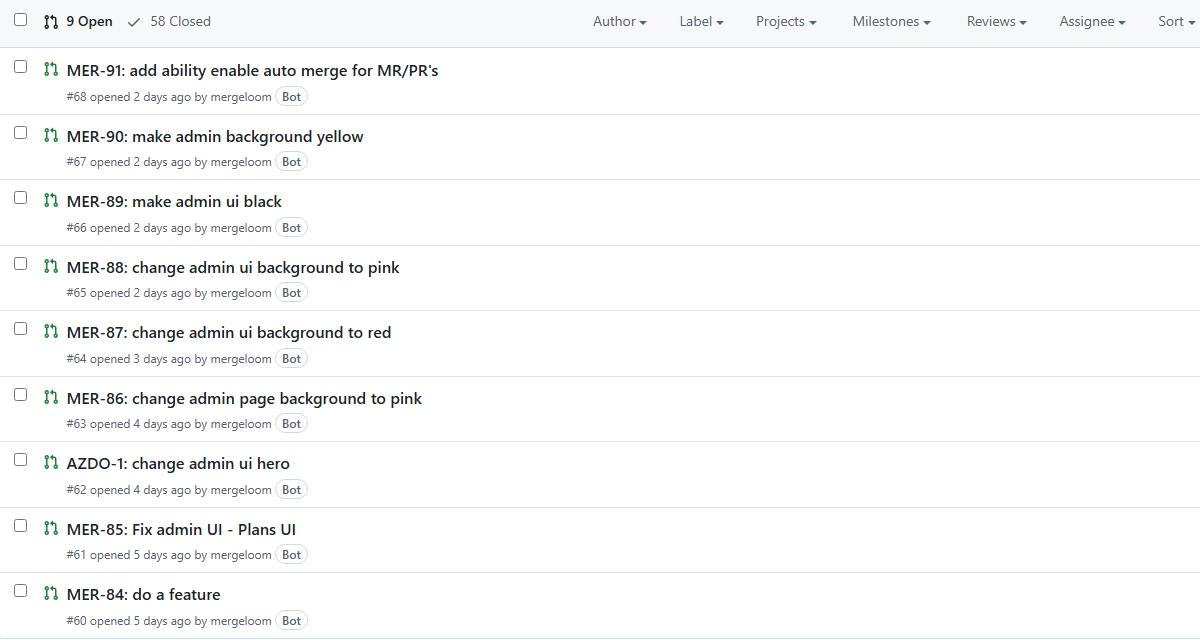
- MergeLoom pushes a branch.
- The controller creates or updates the PR or MR.
- Work tracker receives progress comments and workflow state changes.
- Slack or Teams notifications fire if configured.
If Validation Fails
Section titled “If Validation Fails”Depending on your settings, MergeLoom can:
- retry with a bounded repair loop
- mark the job blocked
- leave a clear failure reason
- preserve trace information for review
Do not treat a failed first run as wasted. The failure usually tells you which setup area needs attention:
- provider auth
- repository permissions
- missing dependency
- wrong validation command
- ambiguous ticket
- wrong workflow state mapping
Continue a Blocked or Reviewed Ticket
Section titled “Continue a Blocked or Reviewed Ticket”To ask MergeLoom for another pass:
-
Comment on the ticket with one of the accepted prefixes:
MergeLoom - please update the PR to also cover ...MergeLoom: please update the PR to also cover ...MergeLoom -> please update the PR to also cover ... -
Move the ticket back to the configured ready state.
-
Wait for intake.
MergeLoom should pick up the new context and update the existing review branch when possible.
Use Retry publish only when the job already produced branch artifacts but failed while creating or updating the PR or MR. Retry publish does not rerun AI coding or validation; it reattempts the publish step from stored artifacts.