Search for “where can I write Python code,” and you will find a wall of acronyms: IDE, editor, interpreter, debugger, linter. The choice matters, but it does not need to be complicated.
A Python IDE brings writing, running, debugging, linting, and project navigation into one place. This guide compares PyCharm, VS Code, Jupyter, Thonny, and IDLE so beginners and growing teams can choose a tool that gets them writing and testing quickly.
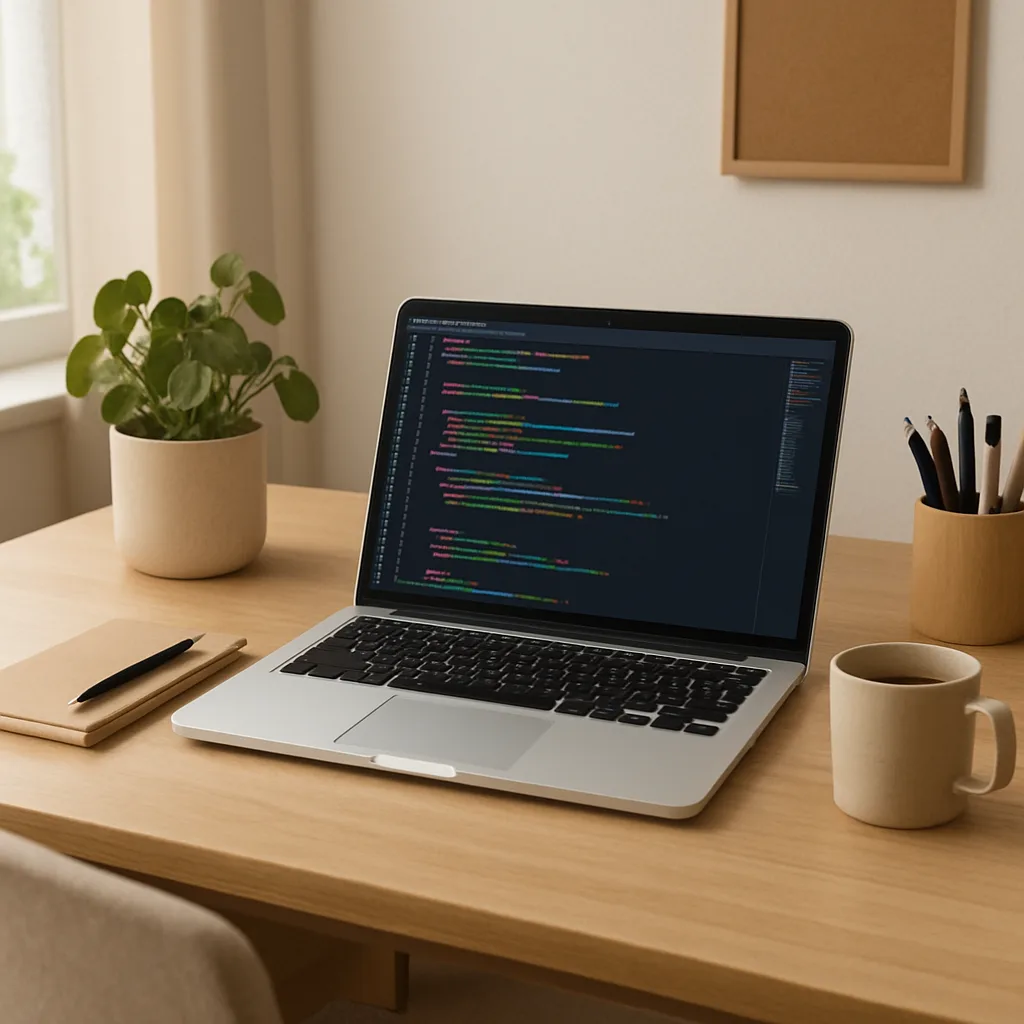
What Exactly Is an IDE? Moving from a Digital Notepad to a Power Tool
To upgrade your workflow, modern development workspaces include four essential capabilities:
- Syntax Highlighting & IntelliSense: Colors text so structure is easier to read and offers autocomplete while you type.
- Linting: Flags common mistakes before you run the program.
- Debugging: Lets you pause code and inspect what is happening.
- Version Control: Safely tracks your project’s history.
If you’re searching for the best compiler for python, remember that Python is typically interpreted; a recommended python ide bundles the interpreter, runner, and debugger so you can execute and test code without extra steps.
Hunting for a missing parenthesis can waste hours. Integrated debugging tools for python let you pause time to see exactly what the computer is thinking, which is significantly faster than using manual print statements. Mastering python syntax highlighting and linting prepares you perfectly for heavy-duty tools like PyCharm.
PyCharm: the Heavy-Duty Powerhouse for Serious Projects
As scripts expand across multiple files, you need a workspace built for heavier projects. PyCharm is a strong option for dedicated Python development on macOS, Linux, and Windows. For most learners, the free Community Edition provides the essentials; Professional is better suited to larger web, data, and enterprise projects.
This Py IDE manages complex project folders automatically by providing three standout features:
- Automatic Virtual Environments: Operating as isolated playgrounds, PyCharm simplifies setting up virtual environments in IDEs so new tools don’t break old projects.
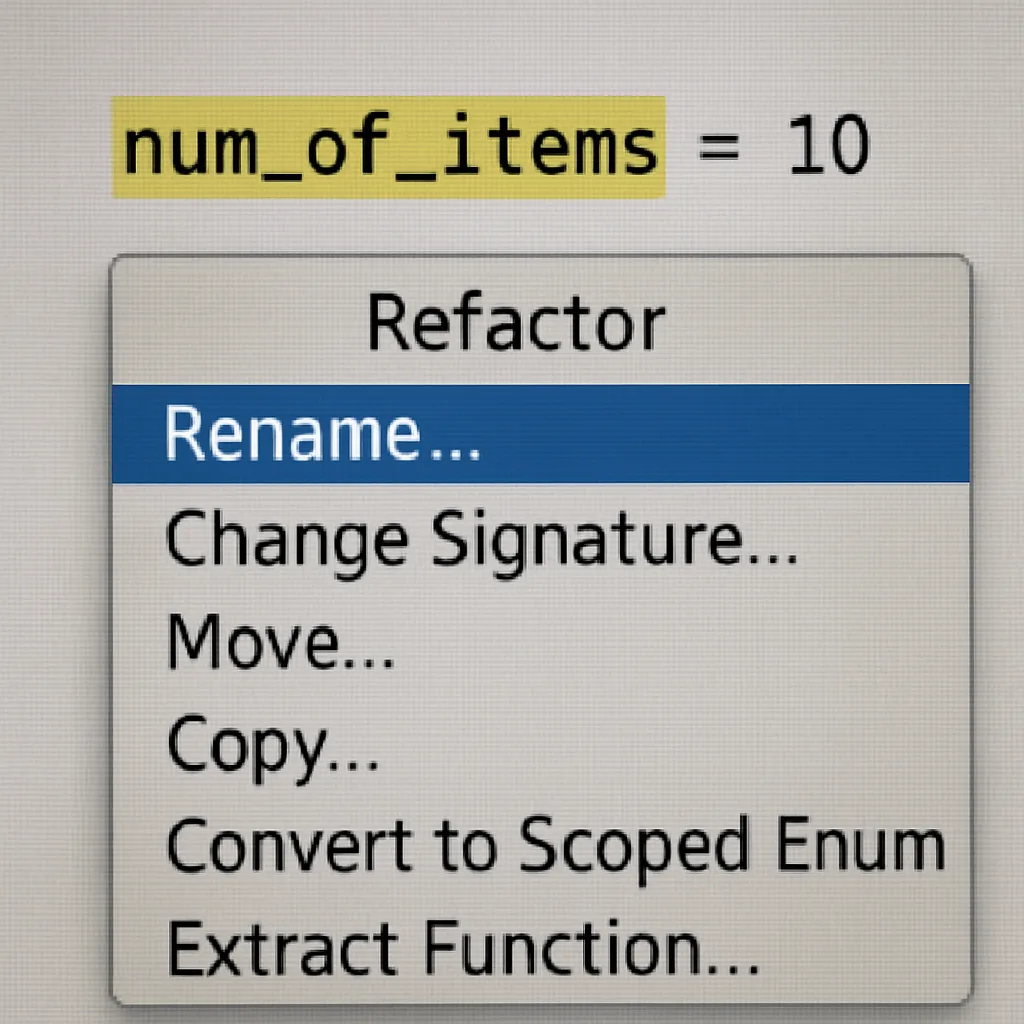
- Smart Refactoring: These premier refactoring tools for python developers let you safely rename a variable once, instantly updating it across all files without breaking your program.
- Professional Debugging: Visually track and fix errors when multi-file scripts get confused.
Trusting these built-in safety nets allows you to focus purely on your logic rather than folder organization. However, if this dedicated workspace feels too heavy, lighter alternatives like VS Code offer maximum adaptability.
VS Code: the Customizable Chameleon for Every OS
Instead of downloading a pre-packaged toolbox, Visual Studio Code (VS Code) lets you build your toolkit piece by piece. It starts as a lightweight editor and becomes a capable Python environment once you add the right extensions. It is a good fit when you want speed, flexibility, and the same setup across macOS, Windows, and Linux.
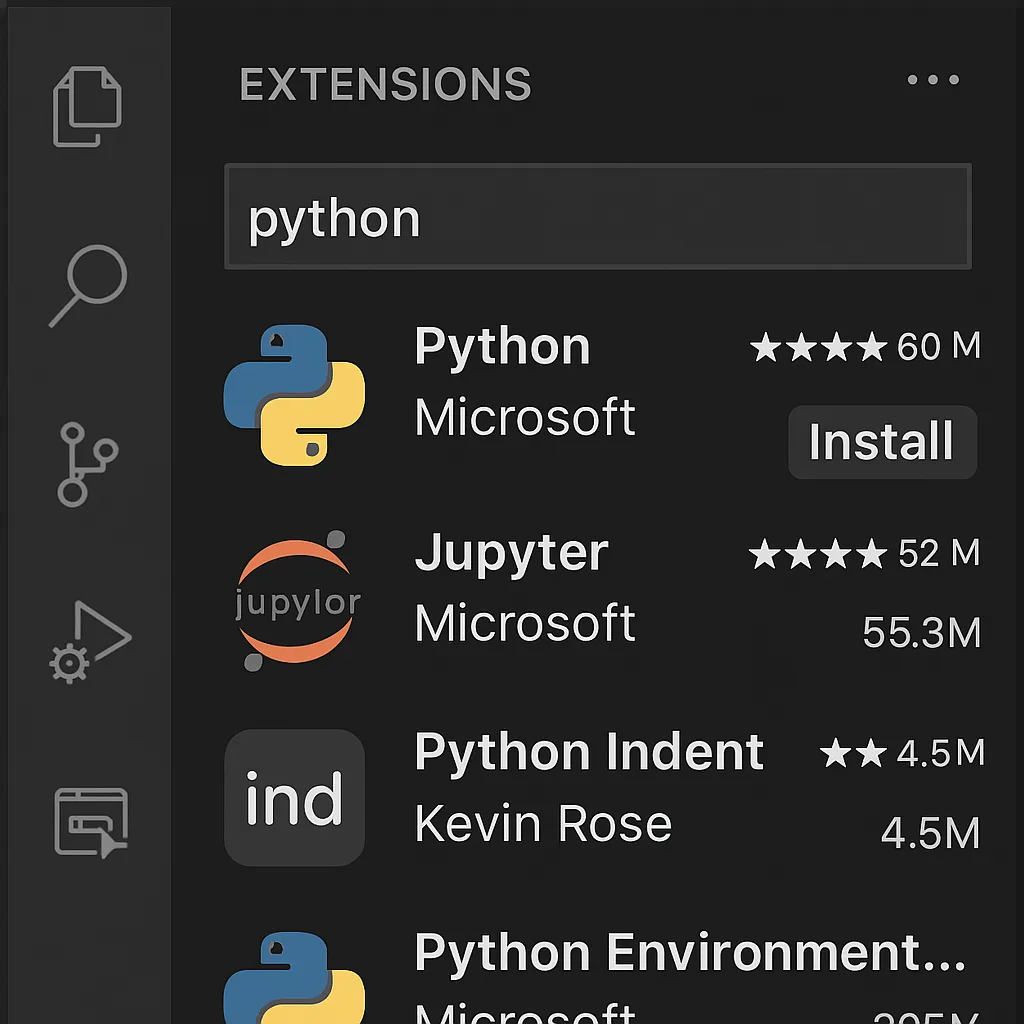
This flexibility relies on “Extensions”---add-ons that function like smartphone apps to customize your workspace. Downloading just one transforms this blank slate into one of the best python code editor options for beginners. Extensions activate powerful features like IntelliSense, a smart autocomplete tool that predicts your code and catches errors instantly.
To build a custom coding environment today, install the top three extensions for Python beginners:
- Python (by Microsoft): The core engine for running scripts.
- Pylance: Powers your IntelliSense error checking.
- Jupyter: A helpful visual tool for viewing data charts.
For data analysis specifically, Jupyter Notebooks offers a highly visual standalone alternative.
Jupyter Notebooks: the Visual Choice for Data Science and Students
Using a basic spreadsheet perfectly prepares you for Jupyter Notebooks. Instead of running a massive script all at once, interactive computing divides your workspace into small “cells.” You can test isolated chunks of logic without restarting your entire program, easily making this one of the best free python ide choices for students who want to learn step-by-step.
Contextualizing that data is where this tool truly shines. Jupyter supports Markdown, a feature letting you type formatted notes directly alongside active code to create functional “living documents.” When wondering which python ide is best for machine learning, professionals consistently highlight this layout. Despite modern Jupyter Notebook alternatives for data science entering the market, the original dominates because scientists love its:
- Visual data output
- Cell-based execution
- Easy documentation
Armed with an understanding of these unique workflows, finding the best python app for your daily routine becomes much simpler.
How to Pick Your First Environment without Analysis Paralysis
Figuring out how to choose a python ide comes down to matching the tool with your immediate goals. Whether you need the best python editor osx supports or a reliable Windows option, your first hurdle is actually installation. The most common setup trap for newcomers is forgetting to check the “Add Python to PATH” box during the initial download. This tiny checkbox acts like a system-wide map, helping your computer connect your new digital workbench directly to the programming language.
Here are our recommended python ide picks---each a good python ide matched to a goal:
- Learning basics: Start with Thonny or IDLE for distraction-free fundamentals.
- Web Development: Graduate to PyCharm when you need professional-grade architecture.
- Data Science: Stick with Jupyter for visual, cell-based analysis.
- All-purpose: Choose VS Code for maximum flexibility across any project.
If you simply want the best python editor for quick scripts, start with Thonny or VS Code.
With your workbench fully assembled, you are ready to write better Python code.
Your 24-Hour Roadmap to Writing Better Python Code
Whether you choose the structured guidance of PyCharm, the flexible dominance of VS Code, or the data-driven playground of Jupyter, you now have a reliable digital workbench to start building with the best app for python programming that fits your style.
Download one tool today and write a simple script to calculate your grocery budget or automate a basic task. If you hit a snag, friendly online Python communities are eager to help troubleshoot. The most effective development environment is simply the one that gets you coding right now.
When Python work moves from personal scripts into team delivery, compare the broader best AI for coding workflow and how ticket-to-code automation keeps implementation tied to review.
Frequently Asked Questions
Question: What is a Python IDE and why use one instead of a plain text editor? Short answer: An IDE is a full-featured workspace that combines writing, running, and debugging tools in one place. Modern Python IDEs provide four essentials:
- Syntax Highlighting and IntelliSense to color-code and auto-complete your code - Linting to flag common mistakes as you type - Debugging to pause execution and inspect what your program is doing - Version Control to track changes safelyBecause Python is typically interpreted, a good IDE also bundles the interpreter, runner, and debugger so you can execute and test code without extra setup.
Question: Do I need a compiler to run Python code? Short answer: No. Python is generally interpreted, not compiled. The recommended Python IDEs bundle the interpreter, a code runner, and a debugger, letting you write, execute, and test your code directly without installing a separate compiler or juggling command-line steps.
Question: PyCharm vs. VS Code—how do they differ and who should choose which? Short answer:
- PyCharm: A heavy-duty IDE designed for larger, multi-file projects across macOS, Linux, and Windows. The free Community Edition is sufficient for most learners. Standout features include automatic virtual environments (to keep project dependencies isolated), smart refactoring (safe, project-wide renames), and professional-grade debugging. Choose PyCharm when you want an all-in-one, opinionated workspace for serious projects. - VS Code: A lightweight, highly customizable editor that runs great on older machines and all major OSes. You add capabilities via extensions—start with Python (by Microsoft), Pylance (IntelliSense), and Jupyter. Choose VS Code if you want speed, flexibility, and a minimal base you can tailor for anything from quick edits to full apps.Question: When should I use Jupyter Notebooks? Short answer: Use Jupyter when you want interactive, visual, step-by-step work—especially for data science or learning. It organizes work into “cells” so you can run small chunks independently, supports Markdown for explanations alongside live code (creating “living documents”), and excels at visual output. Its cell-based execution, easy documentation, and immediate plotting make it a top choice for students and analysts.
Question: I’m new to Python—what should I install first and how do I avoid setup pitfalls? Short answer: Match your tool to your goal:
- Learning basics: Thonny or IDLE for a distraction-free start - Web development: PyCharm when you need professional structure - Data science: Jupyter for visual, cell-based analysis - All-purpose: VS Code for maximum flexibilityDuring Python installation, don’t miss the “Add Python to PATH” checkbox. This simple step prevents many “can’t find Python” errors. Then pick one tool, write a small script, and iterate; the best environment is the one that gets you coding today.